Using Paint Builder’s Painting Guides
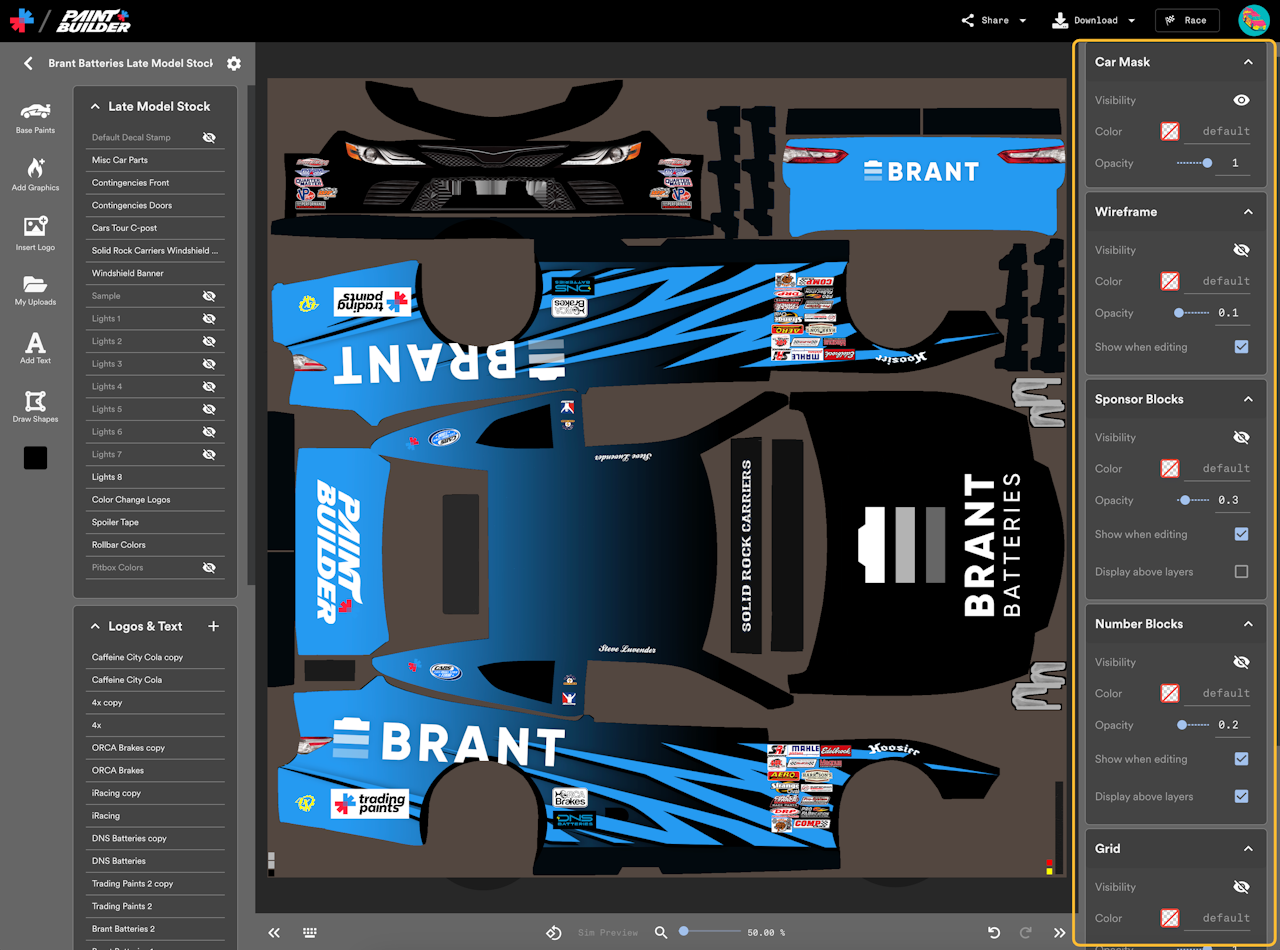
Paint Builder contains a set of customizable tools to help you create custom paints as effectively as possible.
When no layers are selected, the Painting Guides options are visible in the sidebar.
No painting guides are actually saved onto your project, even if you see them on screen; they’re just visible to help you design.
Car Mask
The Car Mask painting guide shows the bounds of the templates, making the placement of body panels more obvious.
- Visibility: Hide or show the Car Mask guide. (Default: visible)
- Color: Change the fill color of the Car Mask guide. (Default: none; usually a neutral color)
- Opacity: Change the transparency of the Car Mask guide. (Default: 1; fully visible)
Wireframe
The Wireframe painting guide shows the shapes and curvature of body panels. It can be helpful to determine the exact edge of the car and to line up pieces of artwork.
- Visibility: Hide or show the Wireframe guide. (Default: hidden)
- Color: Change the color of the Wireframe guide. (Default: none; usually white with green lines to denote the edge of the car)
- Opacity: Change the transparency of the Wireframe guide. (Default: 0.1; only slightly visible, enough for you to see the wireframe and the car’s artwork)
- Show when editing: If checked, the Wireframe guide will appear when you are actively making changes to a layer, like dragging it around the screen. When you’re done dragging the layer, the wireframe will become hidden again if you have Visibility set to hidden. (Default: enabled)
Sponsor Blocks
The Sponsor Blocks painting guide shows the intended location of sponsor logos, as determined by the placement of iRacing’s default logos. Sometimes, Sponsor Blocks will contain a few different colors to indicate which logos should match each other, but that’s not always the case — and you can always customize the car exactly the way you want!
- Visibility: Hide or show the Sponsor Blocks guide. (Default: hidden)
- Color: Change the color of the Sponsor Blocks guide. (Default: none; usually a few different bright colors to stand out)
- Opacity: Change the transparency of the Sponsor Blocks guide. (Default: 0.3; only slightly visible, enough for you to see the guides and the car’s artwork)
- Show when editing: If checked, the Sponsor Blocks guide will appear when you are actively making changes to a layer, like dragging it around the screen. When you’re done dragging the layer, the Sponsor Blocks will become hidden again if you have Visibility set to hidden. (Default: enabled)
- Display above layers: If checked, the Sponsor Blocks will appear on top of the car’s artwork (logos, text, drawn shapes, and graphics) when the Sponsor Blocks are visible. Otherwise, artwork will appear above the Sponsor Blocks so you can focus on the appearance of your artwork while the guides appear in the background. (Default: disabled)
Number Blocks
The Number Blocks painting guide shows the intended location of car numbers, as determined by the placement of iRacing’s default car numbers.
If you’re making a Sim-Stamped Number paint, leave these areas within the Number Blocks boxes clear; that’s where iRacing will stamp your car numbers. If you’re making a Custom Number paint, these areas are likely where you want to place your car numbers.
- Visibility: Hide or show the Number Blocks guide. (Default: hidden)
- Color: Change the color of the Number Blocks guide. (Default: none; usually a bright color to stand out)
- Opacity: Change the transparency of the Number Blocks guide. (Default: 0.2; only slightly visible, enough for you to see the guides and the car’s artwork)
- Show when editing: If checked, the Number Blocks guide will appear when you are actively making changes to a layer, like dragging it around the screen. When you’re done dragging the layer, the Number Blocks will become hidden again if you have Visibility set to hidden. (Default: enabled)
- Display above layers: If checked, the Number Blocks will appear on top of the car’s artwork (logos, text, drawn shapes, and graphics) when the Number Blocks are visible. Otherwise, artwork will appear above the Number Blocks so you can focus on the appearance of your artwork while the guides appear in the background. (Default: enabled)
Grid
The Grid painting guide shows sets of horizontal and vertical lines in the project editor interface in order to help you line up portions of the car in different areas of the template.
- Visibility: Hide or show the Grid guide. (Default: hidden)
- Color: Change the color of the Grid guide. (Default: white /
#FFFFFF) - Opacity: Change the transparency of the Grid guide. (Default: 1; fully visible)
- Column Size: Change the space between gridlines. The larger the number, the more space between lines. (Default: 10)
- Stroke Width: Determines the thickness of the gridlines. The larger the number, the thicker the lines. (Default: 1)
- Show when editing: If checked, the Grid guide will appear when you are actively making changes to a layer, like dragging it around the screen. When you’re done dragging the layer, the Grid will become hidden again if you have Visibility set to hidden. (Default: disabled)
- Snap when editing: When enabled, the Grid guide will display a dotted line following a corner of the selected layer so you can ensure its current position aligns with another area of the template. The Grid guide must be visible in order for this option to be useful. (Default: disabled)
More Painting Guides tips & tricks
Painting Guides options are displayed in the properties panel sidebar by default when no other layers are selected. To reach Painting Guides options if you have a layer selected, deselect the layer by clicking off of it or pressing the Esc or Enter key.
Use these keyboard shortcuts to toggle Painting Guides:
1: Car Mask2: Wireframe3: Sponsor Blocks4: Number Blocks5: Grid
Turn off visibility and enable the Show when editing option in each Painting Guide to make each Painting Guide only appear when you’re actively changing or moving around a layer.
If you’ve changed the color of a painting guide and you wish to revert it to its default value, delete the text in the Color field.
At the bottom of the Painting Guides menu in the sidebar, there’s an option for Car Parts to “Display above layers”. If checked (default), this will display Car Parts layers like lights and stamped logos above your custom-designed artwork. If unchecked, your artwork will appear on top of the iRacing-stamped template items. However, note that some cars contain iRacing-mandated items that cannot be painted over.