How do I submit my work to the Showroom?

Submitting your paint to the Showroom
If you’ve created an original paint, you can upload it to the Showroom to share it with the community.
Before you proceed, you’ll need the following items ready:
- The completed paint file (2048×2048 TGA or PNG file format)
- Note: Please don’t upload work-in-progress paints. The Showroom is intended to show off your polished and finalized work!
- Screenshots of the completed car from iRacing so other drivers can clearly see the custom paint
- Note: Please take the time to create your posting with screenshots from iRacing! If you painted a replica, don’t use real photos of the car.
Once logged in, navigate to “Upload to Showroom” in the Showroom menu.
Upload the paint file from your computer
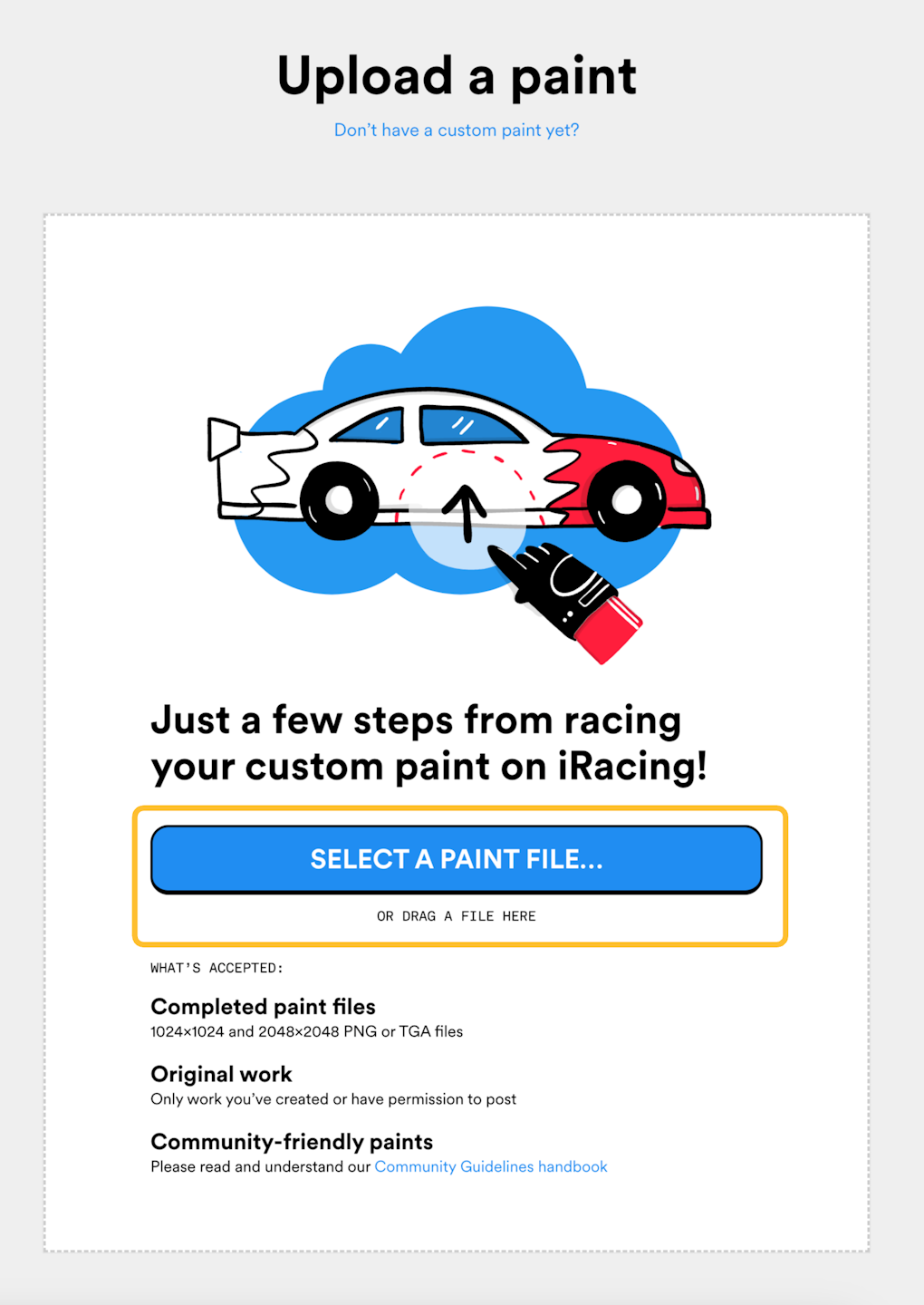
On the Showroom Upload screen, you’ll first be prompted to select the completed paint file from your computer.
Click “Select a paint file” to browse for the TGA or PNG file of the paint file you exported from your painting program. Dimensions should be 1024×1024 or 2048×2048, and the paint file should comprise only of your original work.
Optional: add a spec map or decal layer file
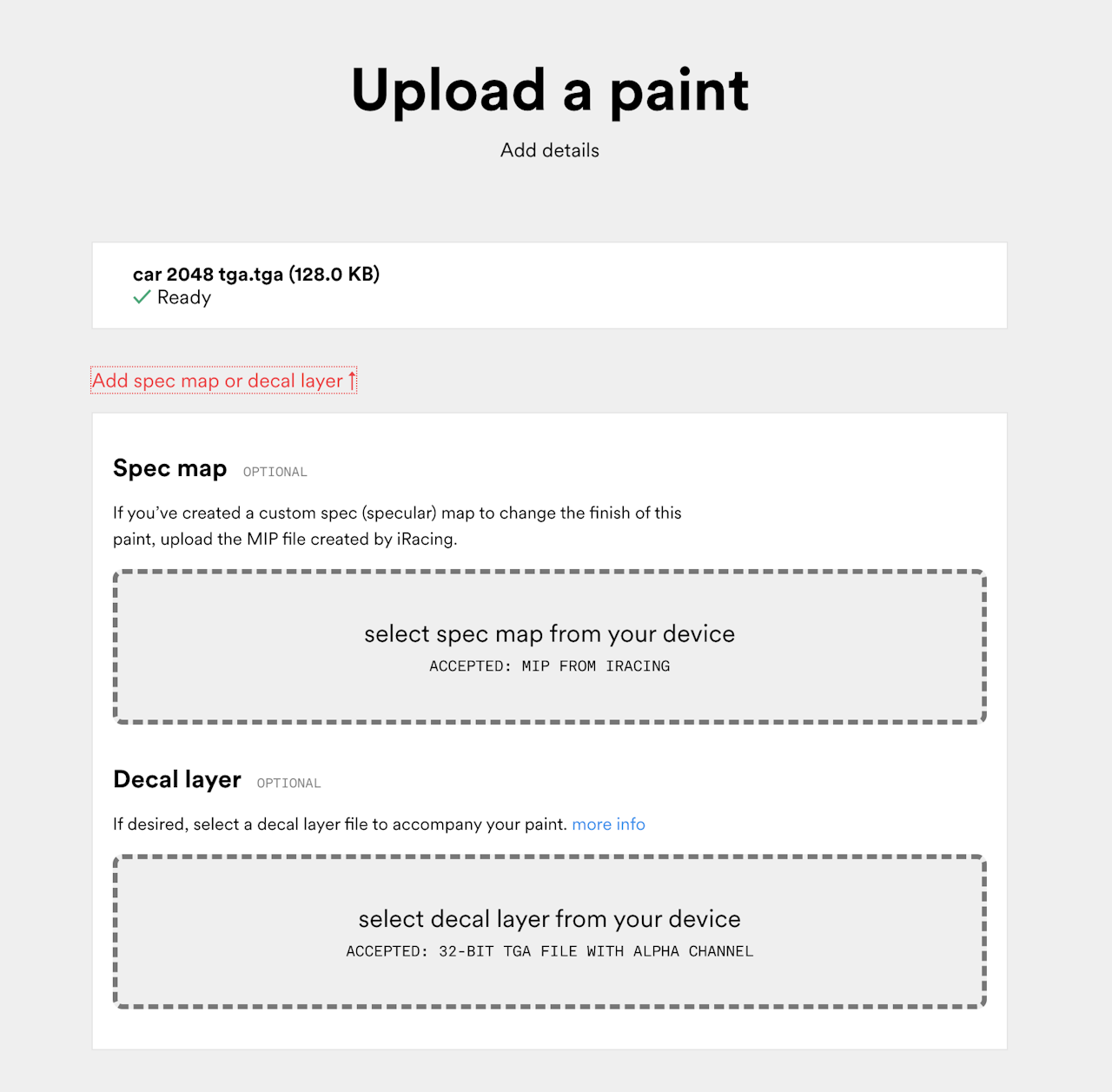
If you’ve created a spec map (MIP file) or decal layer file (a secondary TGA file, which is quite rare) to accompany your paint, you can click “Add spec map or decal layer” at the top of the screen and add those files if needed.
If you don’t have these files or you don’t know what this means, don’t worry about this step.
Select Upload to Showroom/Community
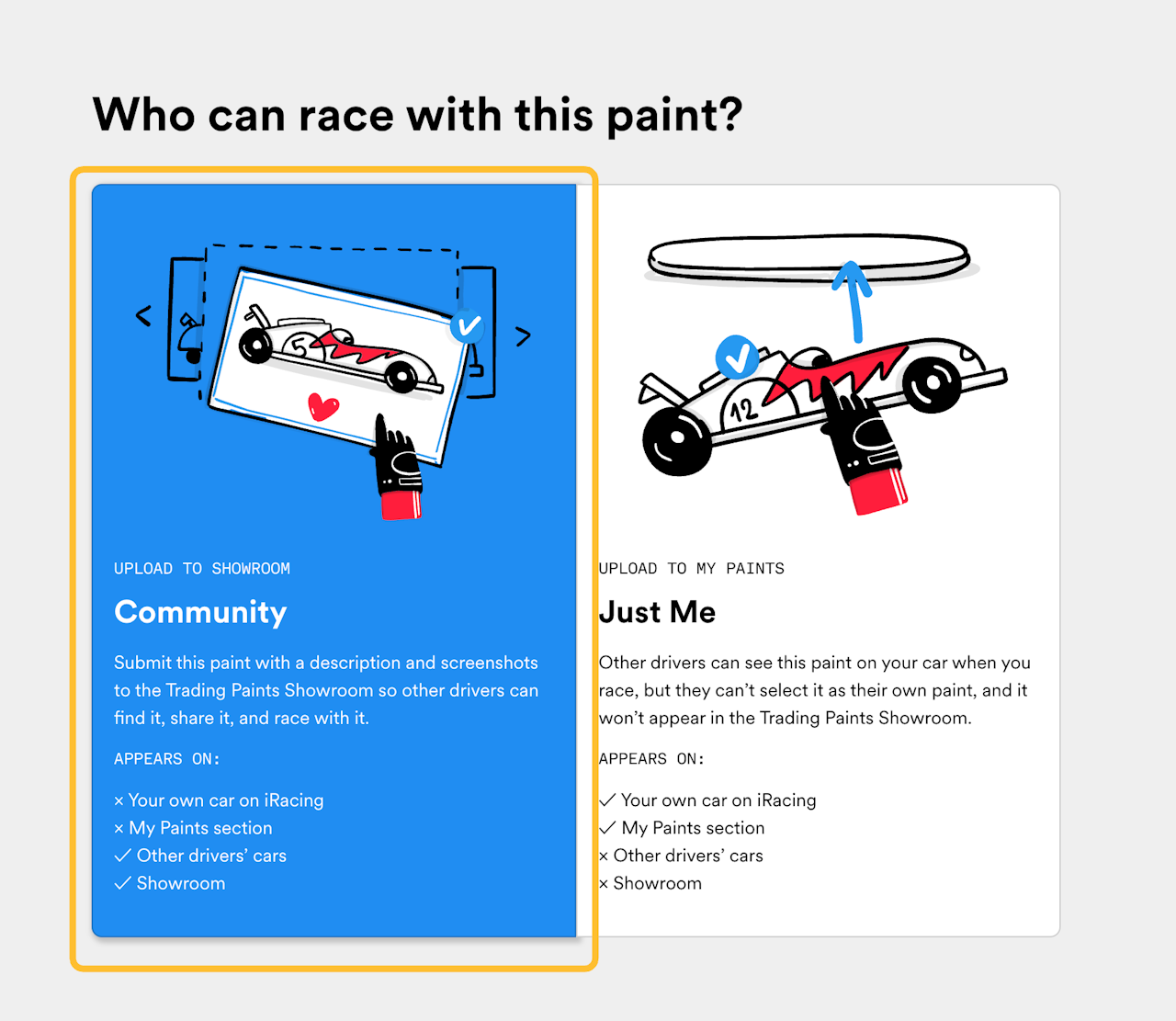
For the “Who can race with this paint?” option, keep the selection on the “Community” option because you want to share your work in the Showroom.
(The “Just Me” option uploads your paint only into your My Paints section for your personal use only.)
Enter the vehicle, title, and description

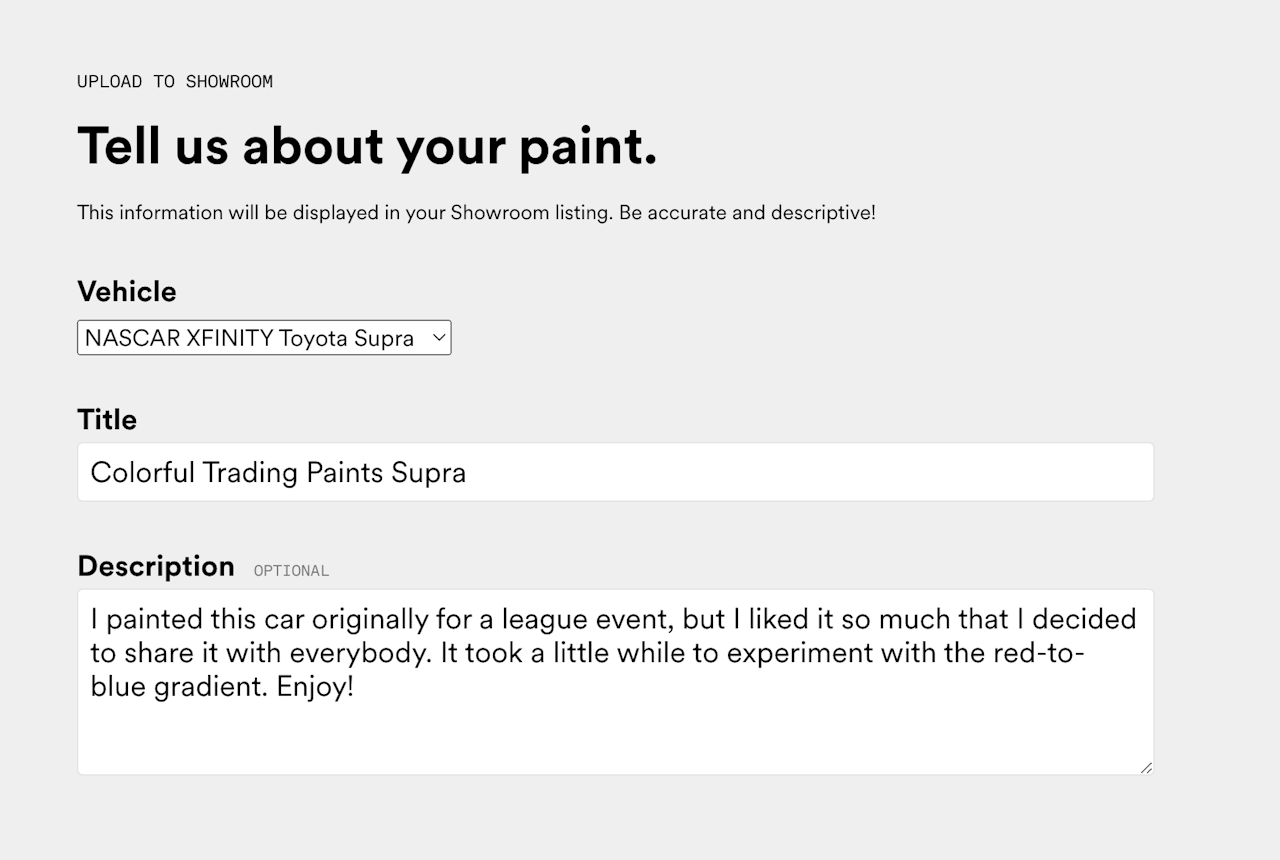
Select the appropriate vehicle from the Vehicle dropdown.
Assign a title for your listing. This will be displayed prominently on your submission page and in search listings, so choose it carefully.
Add a description to your paint if you wish. Everybody likes a story!
Select the car number type
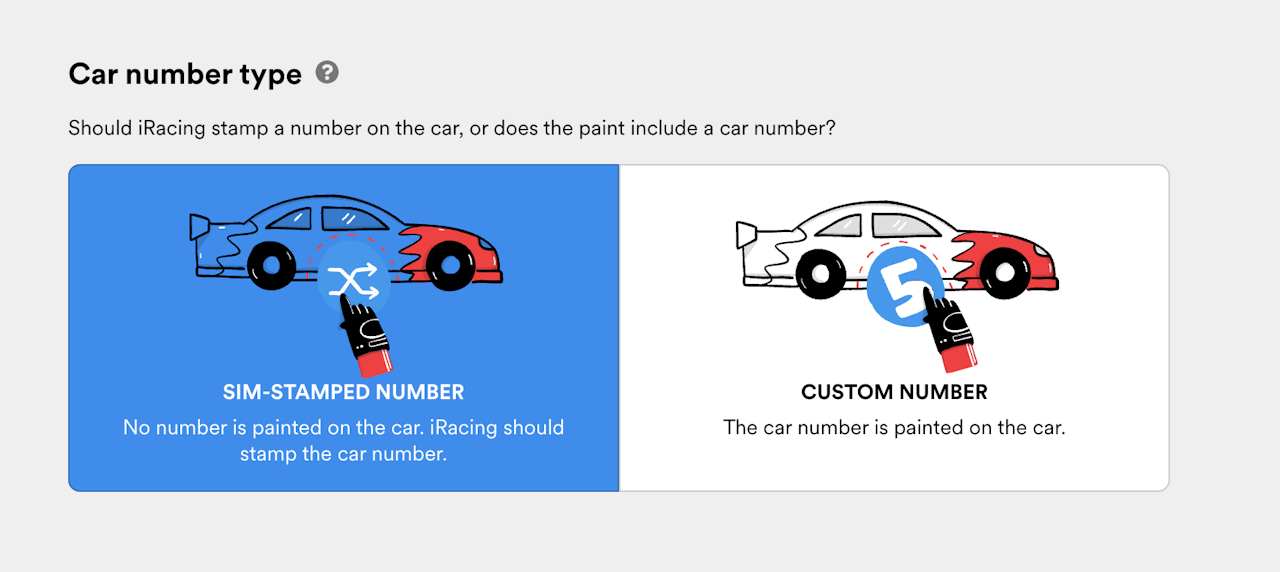
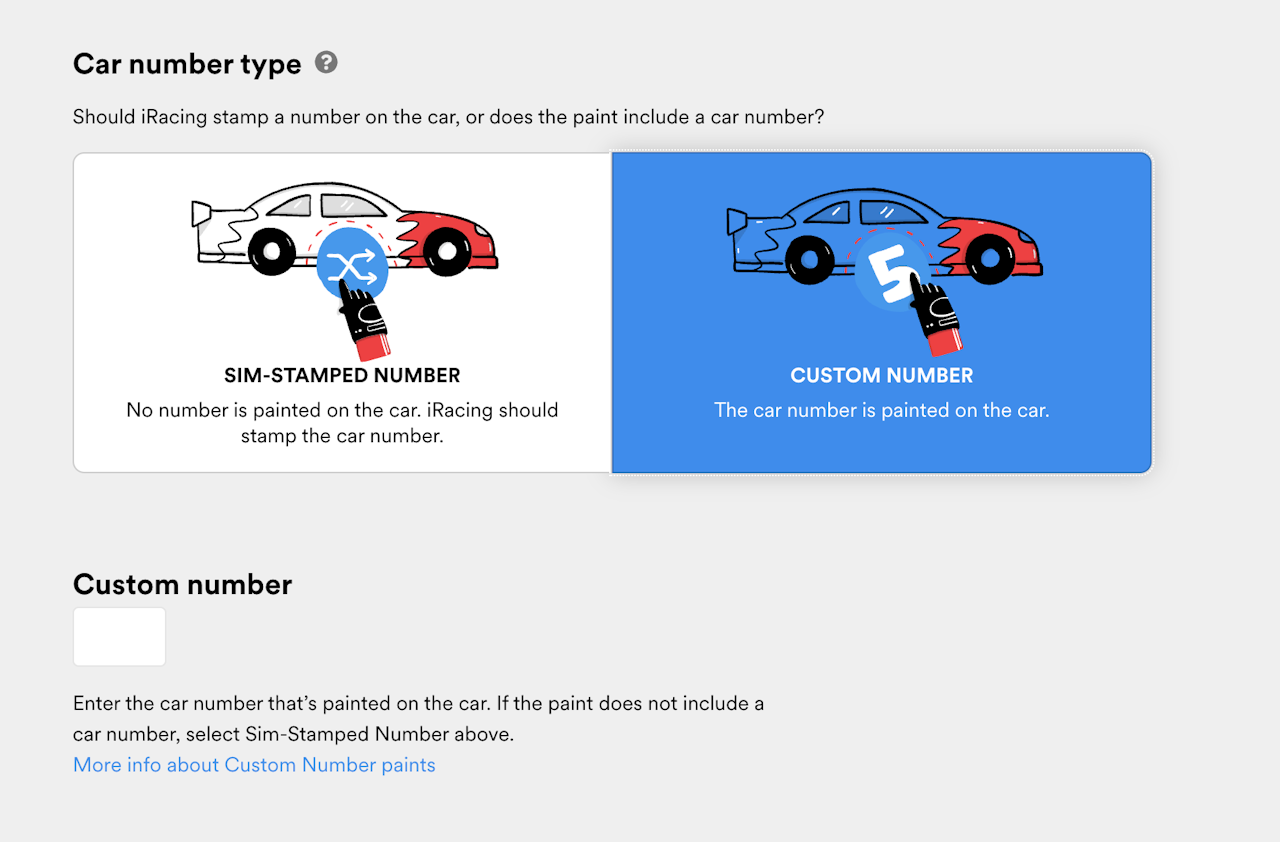
Next, you’ll choose if your paint is a Sim-Stamped Number paint or a Custom Number paint.
If you didn’t paint a number on the car and you want iRacing to stamp the number automatically (so it differs depending on your iRacing Paint Booth settings and the car number iRacing assigns you in a race), choose Sim-Stamped Number, which is the default choice.
If the car number is painted directly onto the car, choose the Custom Number option and enter the number of the car. iRacing won’t stamp a number on the car if it’s a Custom Number paint.
Add pictures to your listing
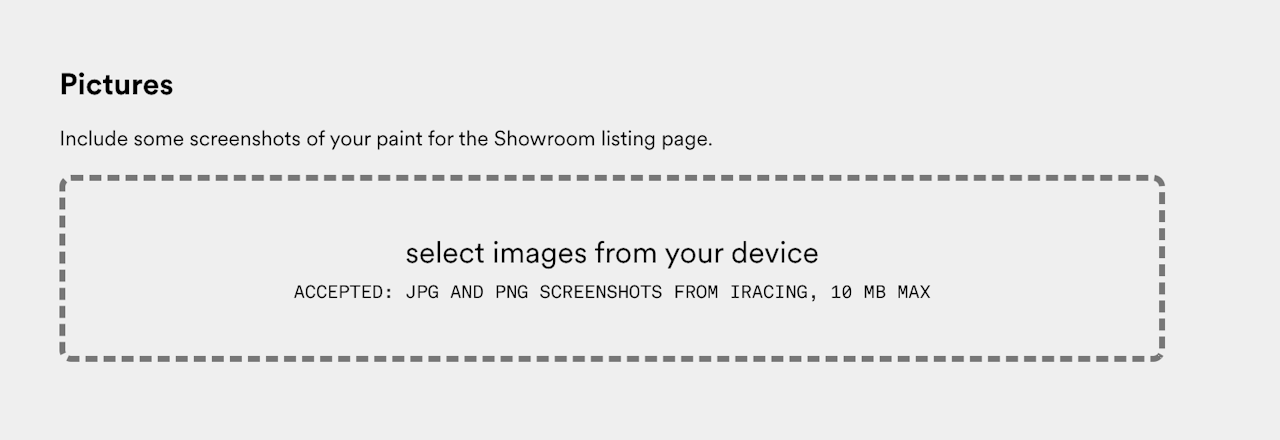
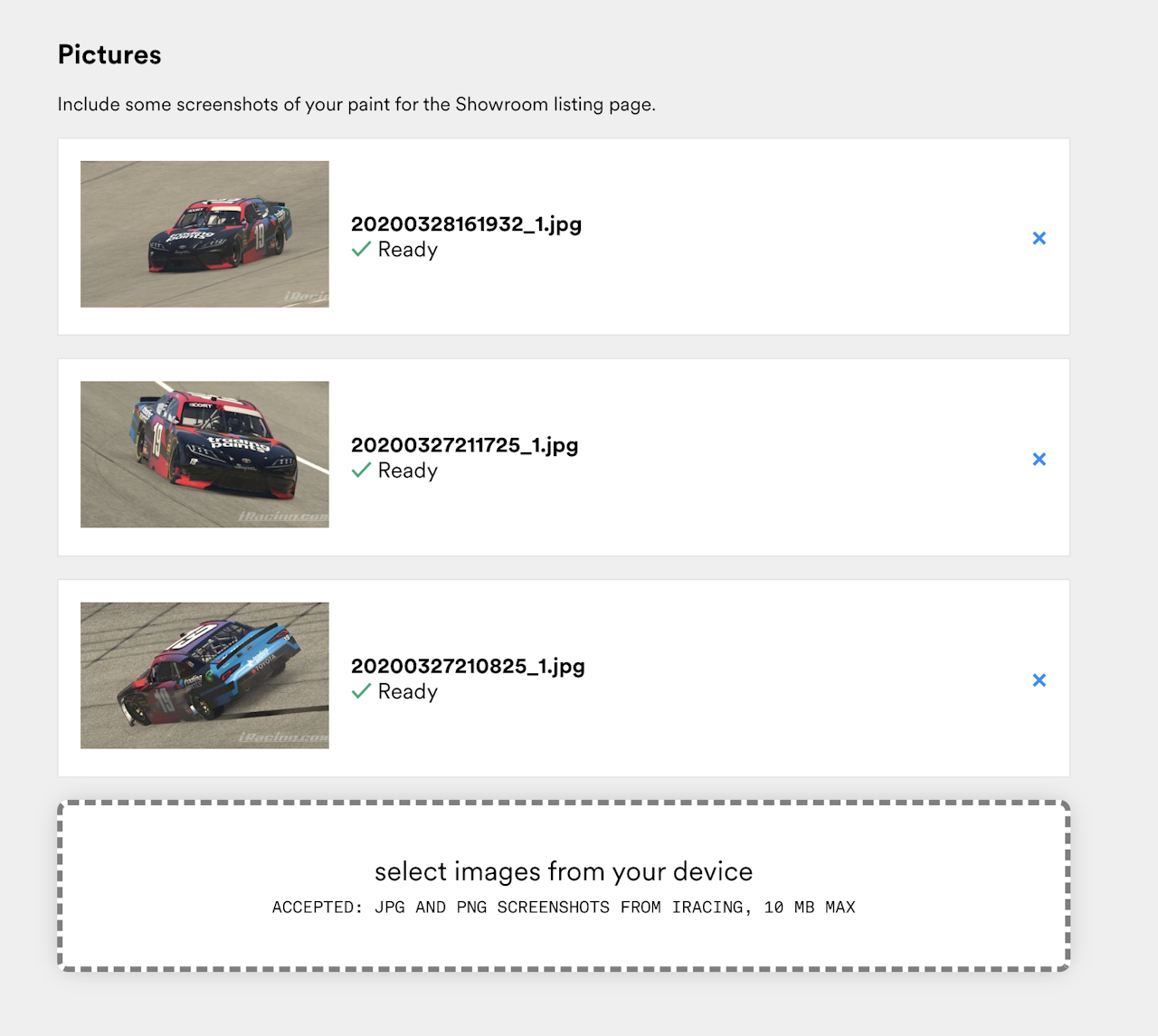
Select iRacing screenshot files from your computer to accompany your listing. You can choose up to 10 image files in JPG or PNG format with a maximum 10 MB file size.
Only include pictures of the car in iRacing, whether that’s an on-track screenshot or a picture from iRacing’s 3D car viewer (in the iRacing UI Paint Booth). Consider showing your car from different angles and in different settings. Get creative!
You should only show accurate representations of the car as it will be raced in iRacing; please don’t show photographs of the real car if you’re painting a replica, and please don’t grab random image files from your computer just because you need something in the required Pictures field. Take the time to show off your work with pride!
Optional: define paint booth info
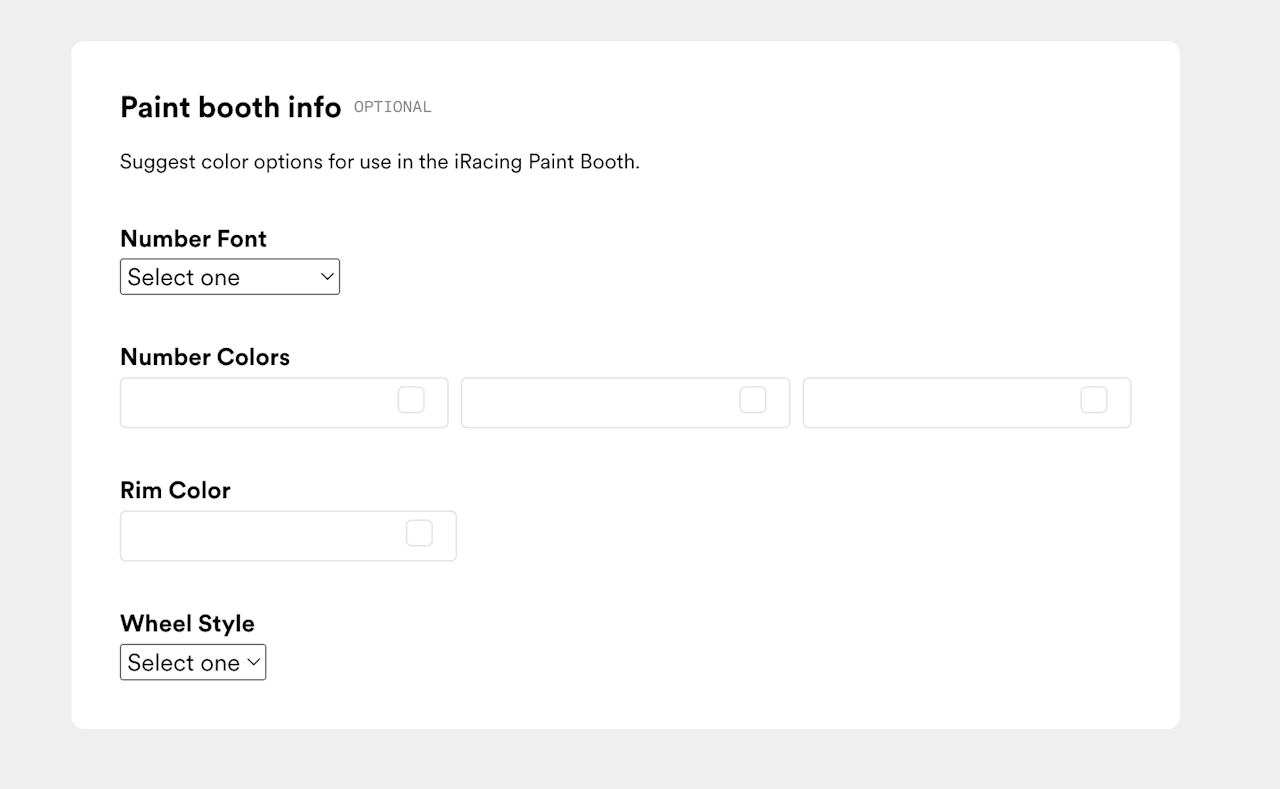
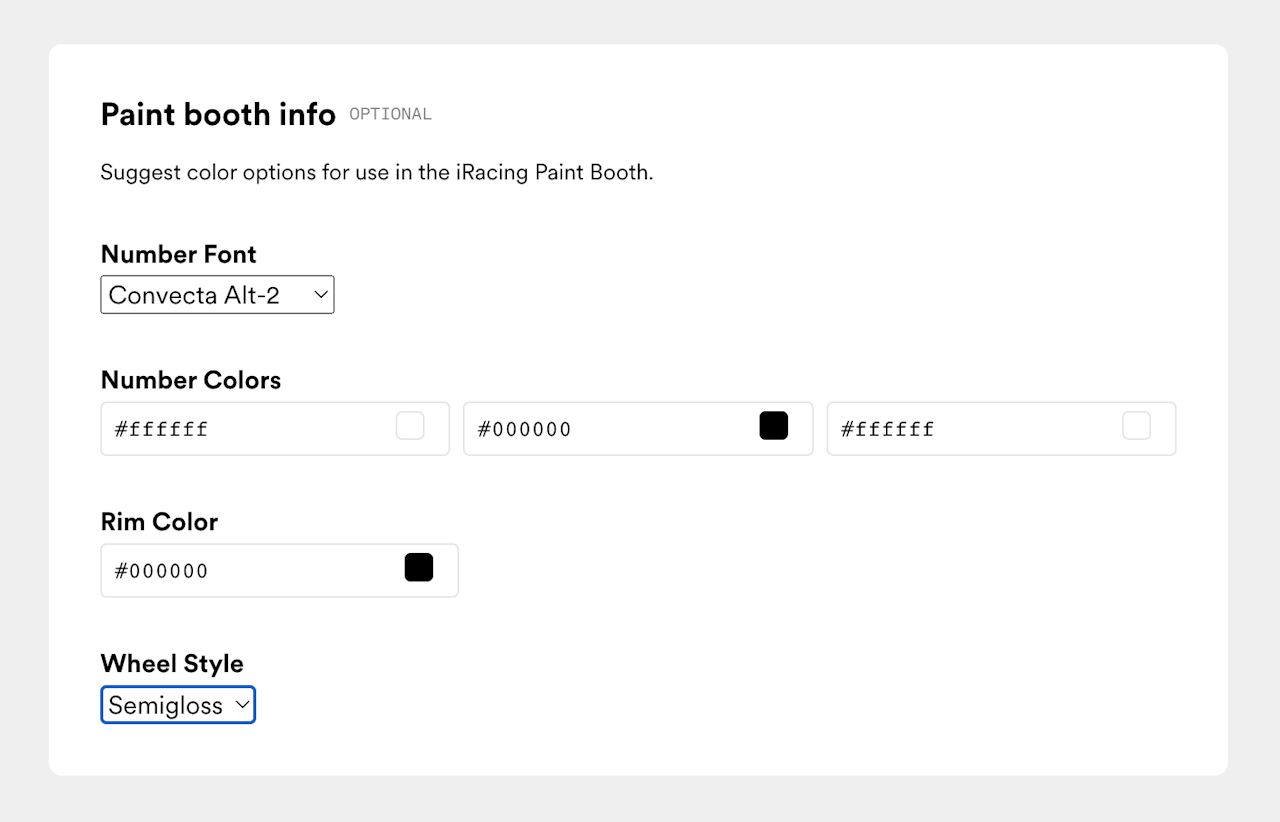
If you have specific number fonts, hex color codes, or wheel/rim styles for your paint that you’d like to note for other drivers racing your paint, you can define them in the paint booth info section. This is entirely optional.
Set privacy and community settings
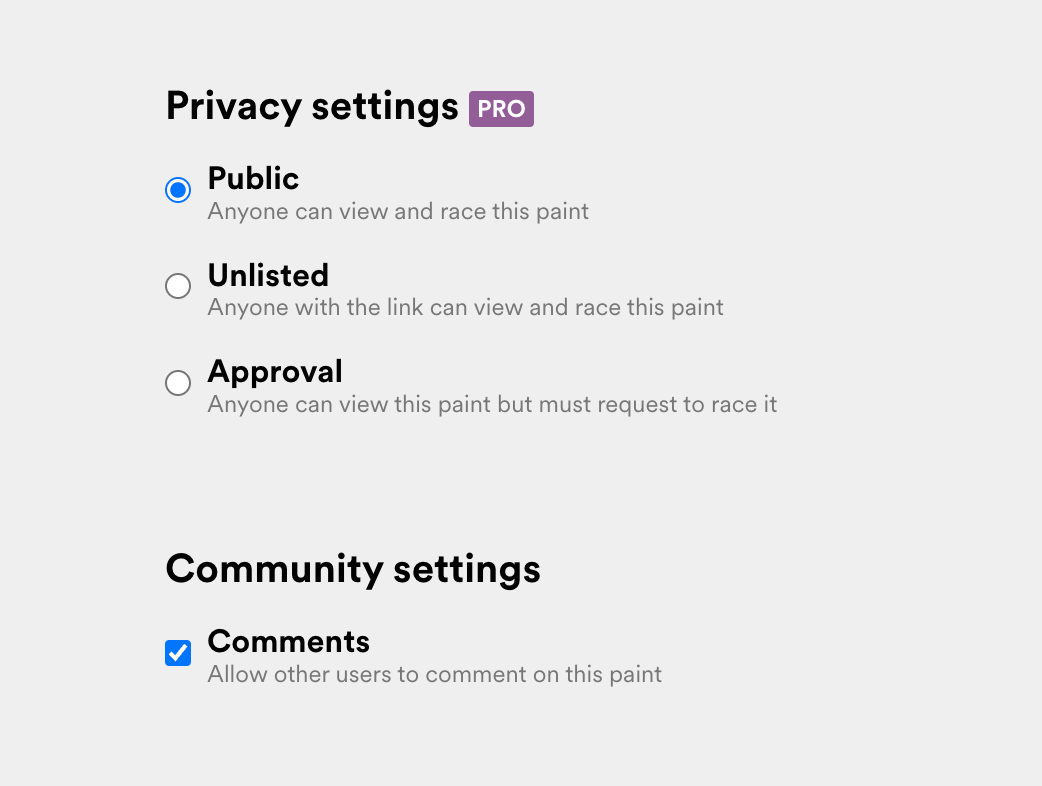
Choose visibility options for your paint.
If you’re a Trading Paints Pro member, you can select from various privacy settings:
- Public: anyone can find, view and race with your paint.
- Unlisted: anyone who has the link can view and race with your paint. Unlisted submissions are not visible on your profile page or in search results.
- Approval: anyone can find and view your paint, but your approval is required before a driver assigns the paint as their car in iRacing.
If you don’t have Trading Paints Pro, your submission is a Public listing.
You can also select if you wish to enable or disable comments on your paint’s listing page.
Submit your paint
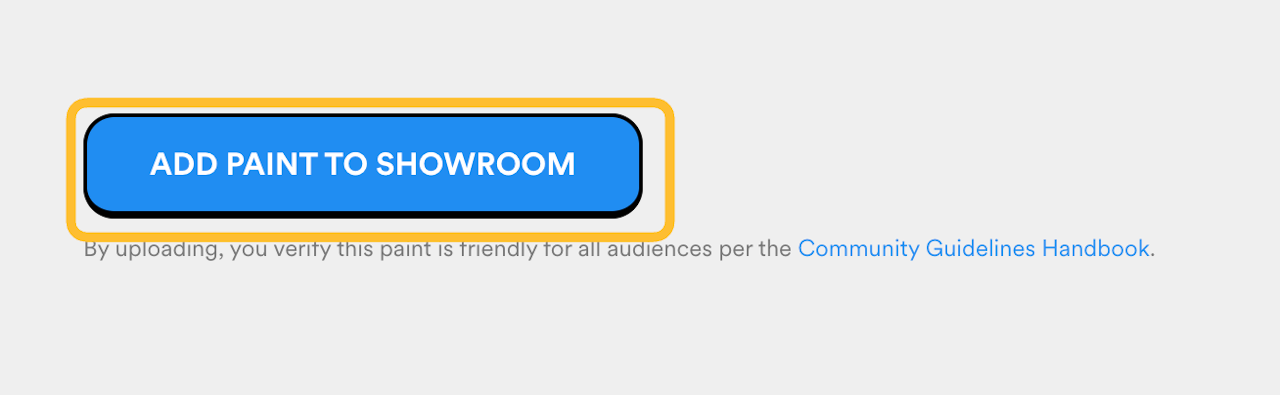
Double-check all the information on the screen for accuracy and completeness. When you’re ready to go, click the blue Add Paint to Showroom button. You’ll see a Processing screen appear.
If the button is grayed out, it usually means you missed a required step. Carefully review all the fields.
You’ve added your paint to the Showroom!
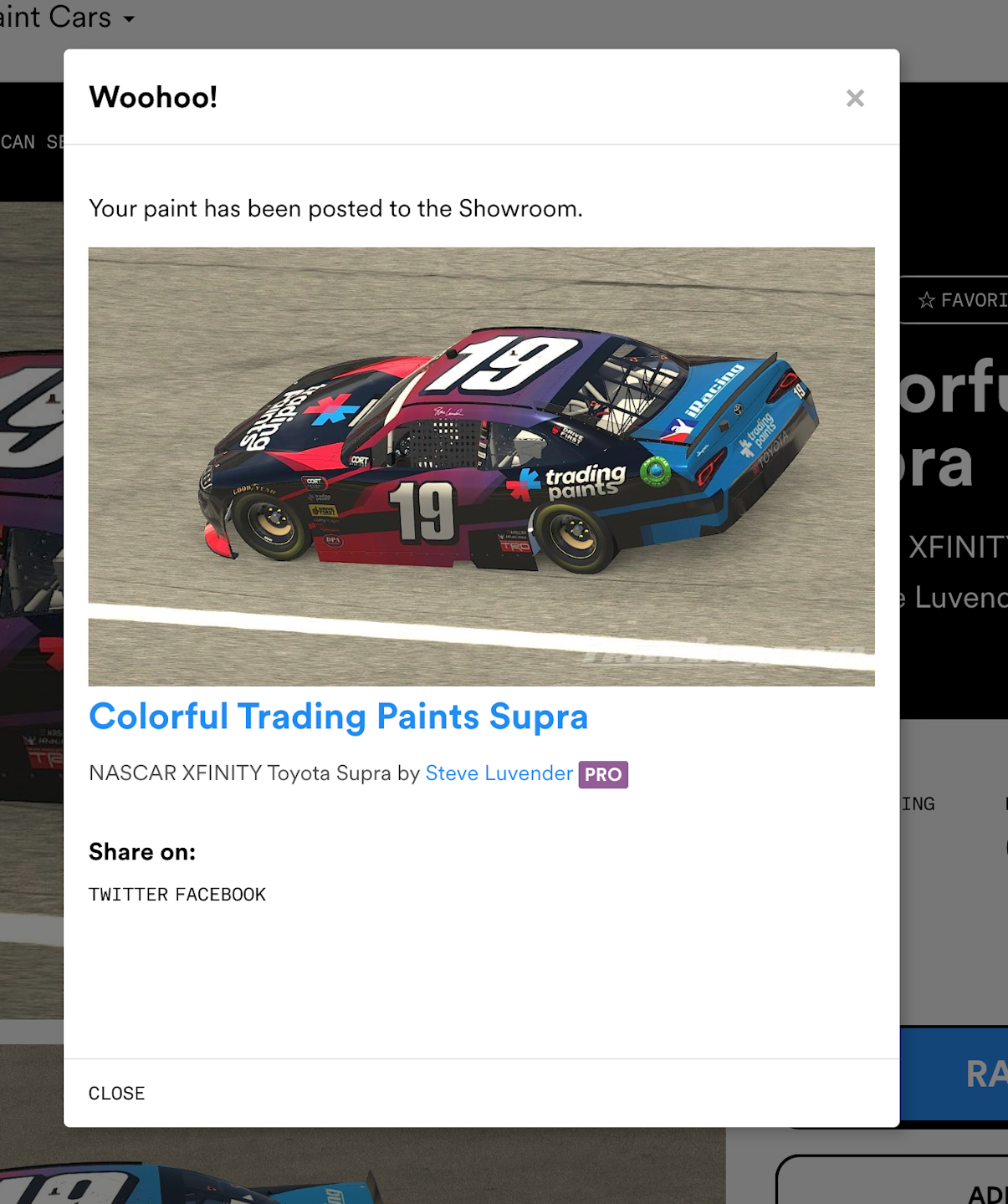
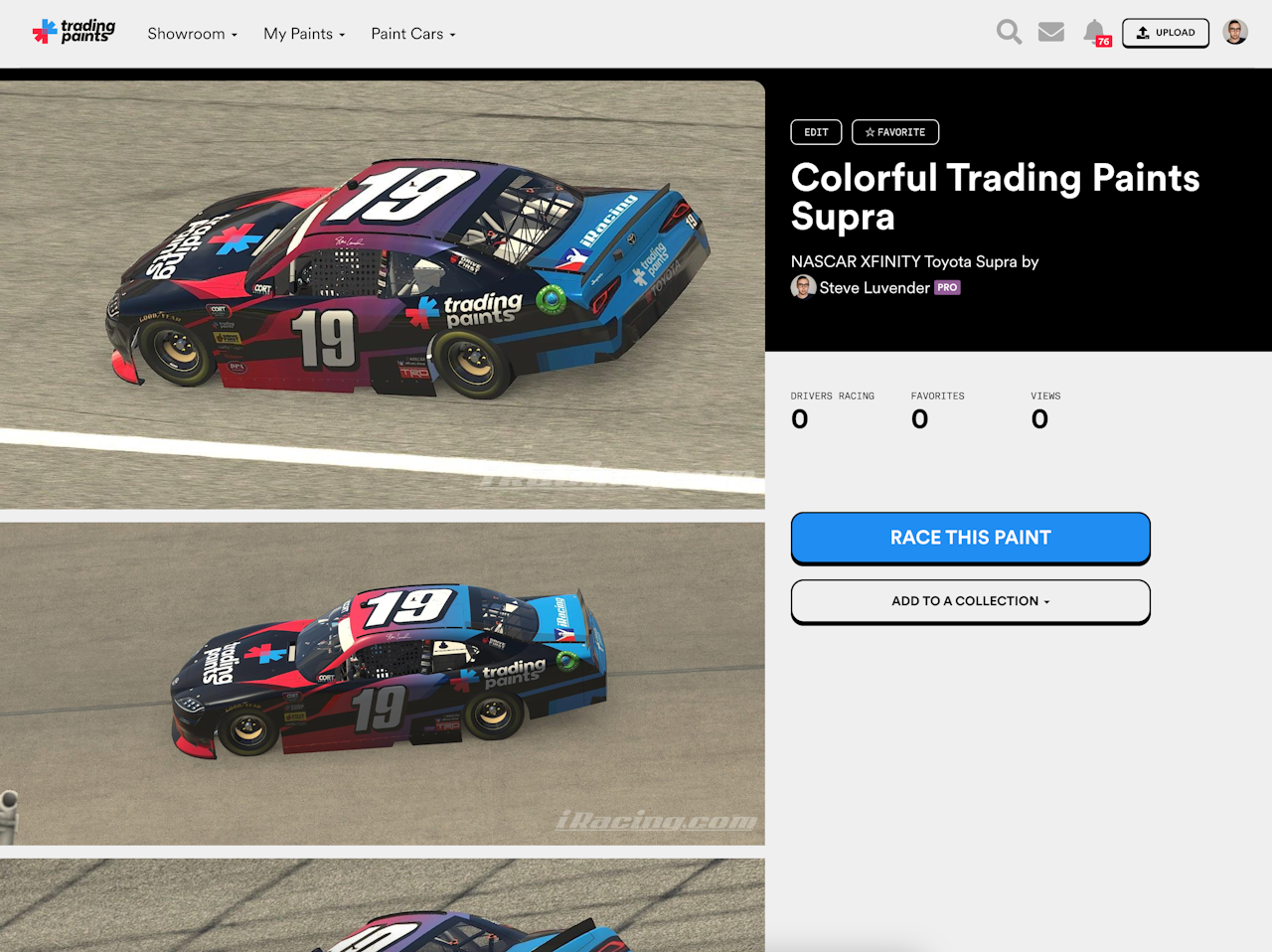
You did it! Your submission is posted to the Showroom.
The paint will immediately appear in the Showroom listing, search results, and your profile page, depending on the settings you chose when uploading.
You can start sharing the link to your Showroom listing page so others can view, race, and favorite your work!